
Telegram chat settings — when, where and how messages are saved
Updated November 19, 2026
Every Telegram chat linked to Boards — your private chat with @msgboard_bot or a group — works by three settings:
- When to save — every message, or only the ones you save with
/save. - Where to save — always the same place, or a place you pick for each message.
- How the bot confirms — a reply with a link to the card, or just a 👍.
You pick them while linking a chat and can change any of them later with /link. The use cases below show which combination fits which kind of chat.
When to save
- Every message — each message sent in the chat becomes an issue, and editing the message updates the issue.
- Only via /save — nothing is saved until someone replies to a message with
/save(or/aisave).
The commands and what they do are described in Auto vs. manual save mode.
Where to save
A chat always saves to one organization. Below it, you decide how much is fixed:
- A fixed place — the chat is linked down to a status (or a backlog), and every card lands there right away.
- Chosen each time — the chat fixes only part of the way: the organization, a space or an epic. The rest is picked for each message. For example, fix the epic and pick the status each time, or fix only the organization and pick everything.
While linking, every step below the organization has a button for this: ❓ Ask for the space each time, ❓ Ask for the epic each time and ❓ Ask for the status each time. The chat's destination then shows as e.g. Organization → Space → ❓ chosen each time.
Picking where a message goes
In a chat that asks, the bot replies to each new message (or to your /save command) with 📥 Where should this go? and the next level to choose:
- Space — the spaces you can read.
- Epic — the space's epics, the backlog first. Picking the backlog saves right away: it has a single status.
- Status — the epic's columns.
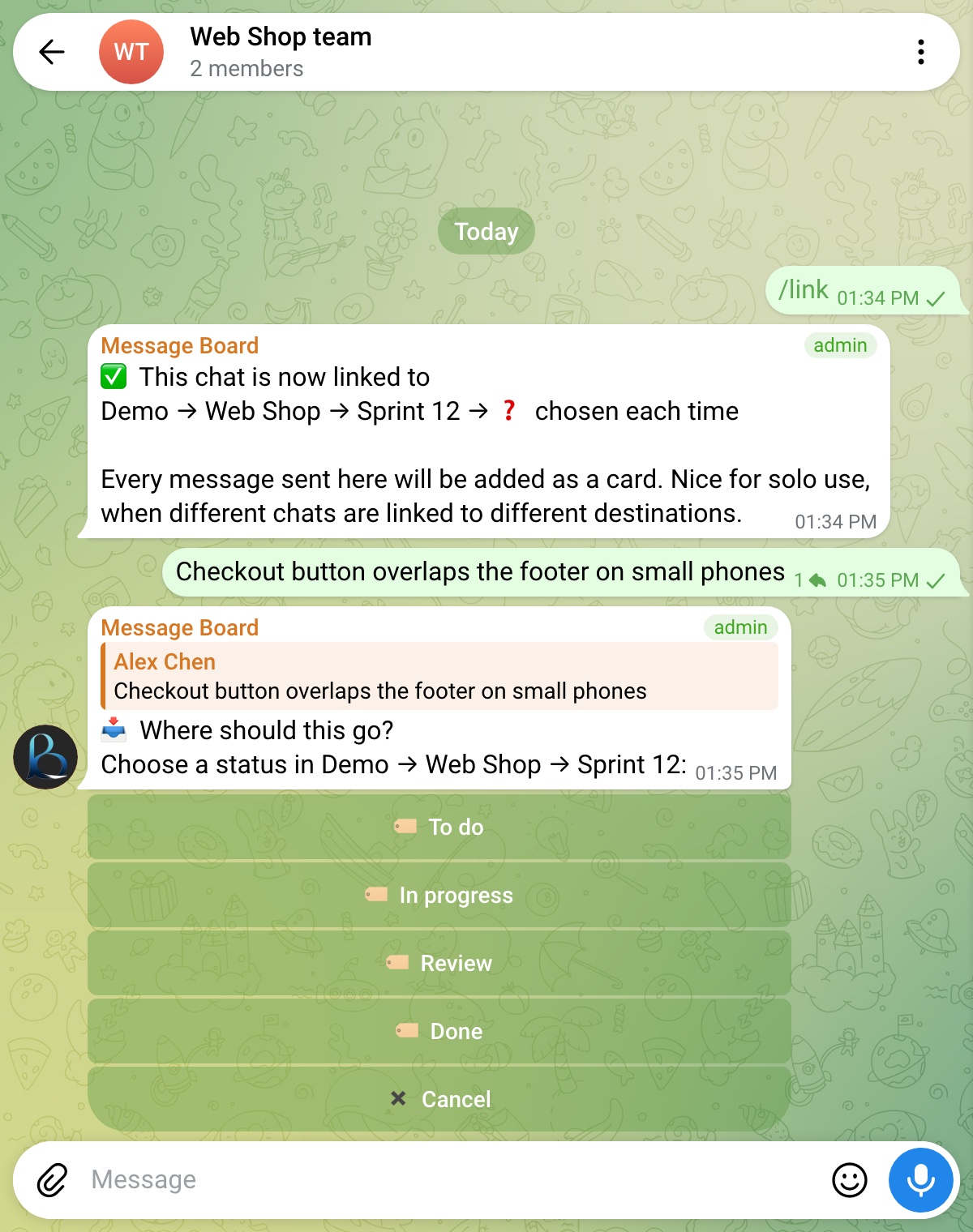
Back goes up a level, but never above what the chat fixes. Cancel closes the question; the message stays without a card (in a /save chat, run /save again to get it back).
A few things to know:
- Only the person whose message it is picks — the sender, or whoever sent
/save. Anyone else who taps gets a short notice. - The card is created when you pick the last level, from the message as it is then: an edit made while the question waited is in the card, and a photo album becomes one card with all its photos.
- The question doesn't expire. You can answer it later, as long as the chat is still linked and you still have access.
- Permissions are checked at the end: you need permission to create issues in the epic you picked. You only ever see spaces you can read.
/aisaveworks the same way: the AI rewrites the text once you've picked where it goes.
How the bot confirms
- 🔗 A reply with the card link — the bot replies with the new card: its key, organization, a preview and an Open issue button. You always see where a message went.
- 👍 A reaction — the bot puts 👍 on the message for a new card. Quieter: nothing is added to the chat.
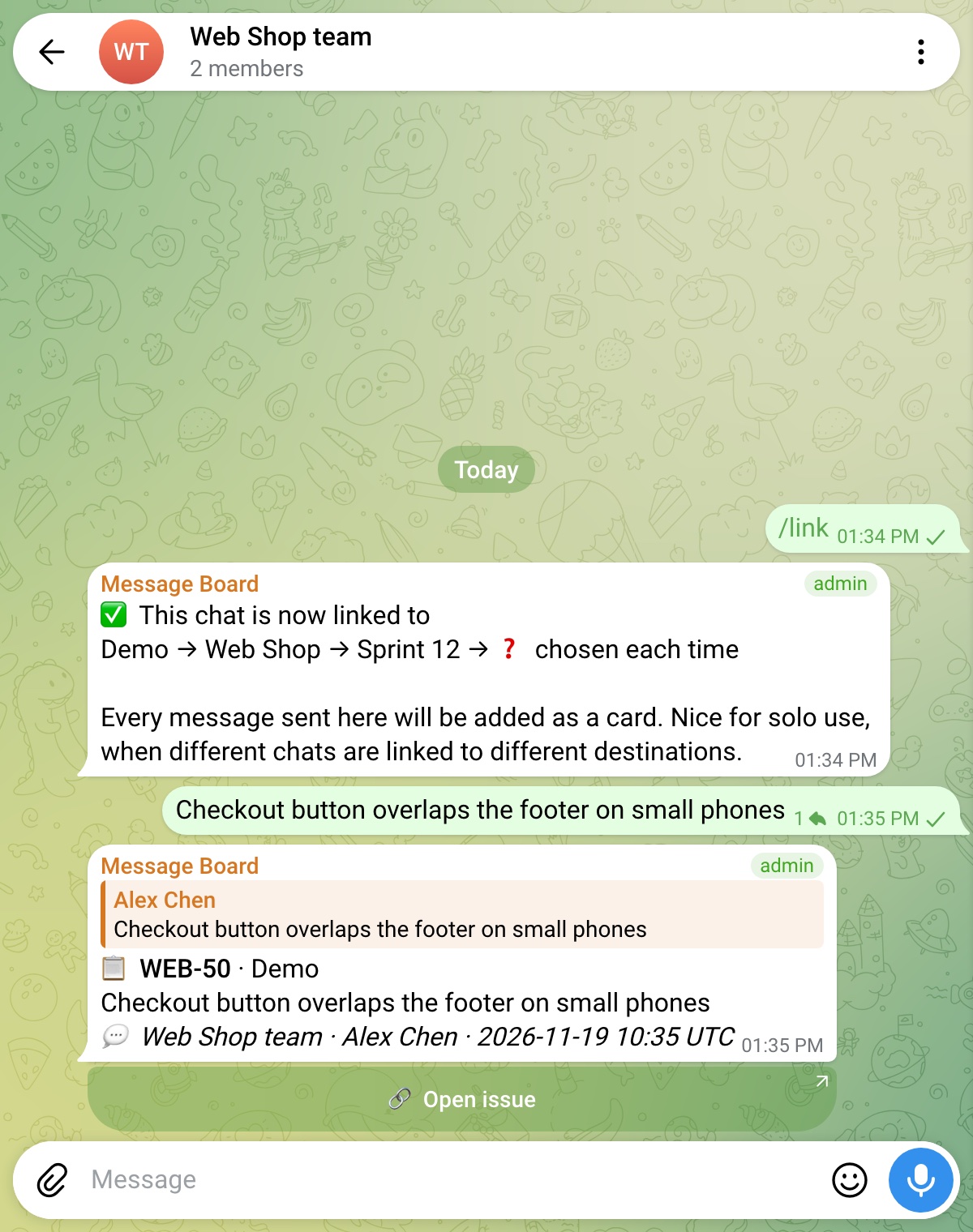
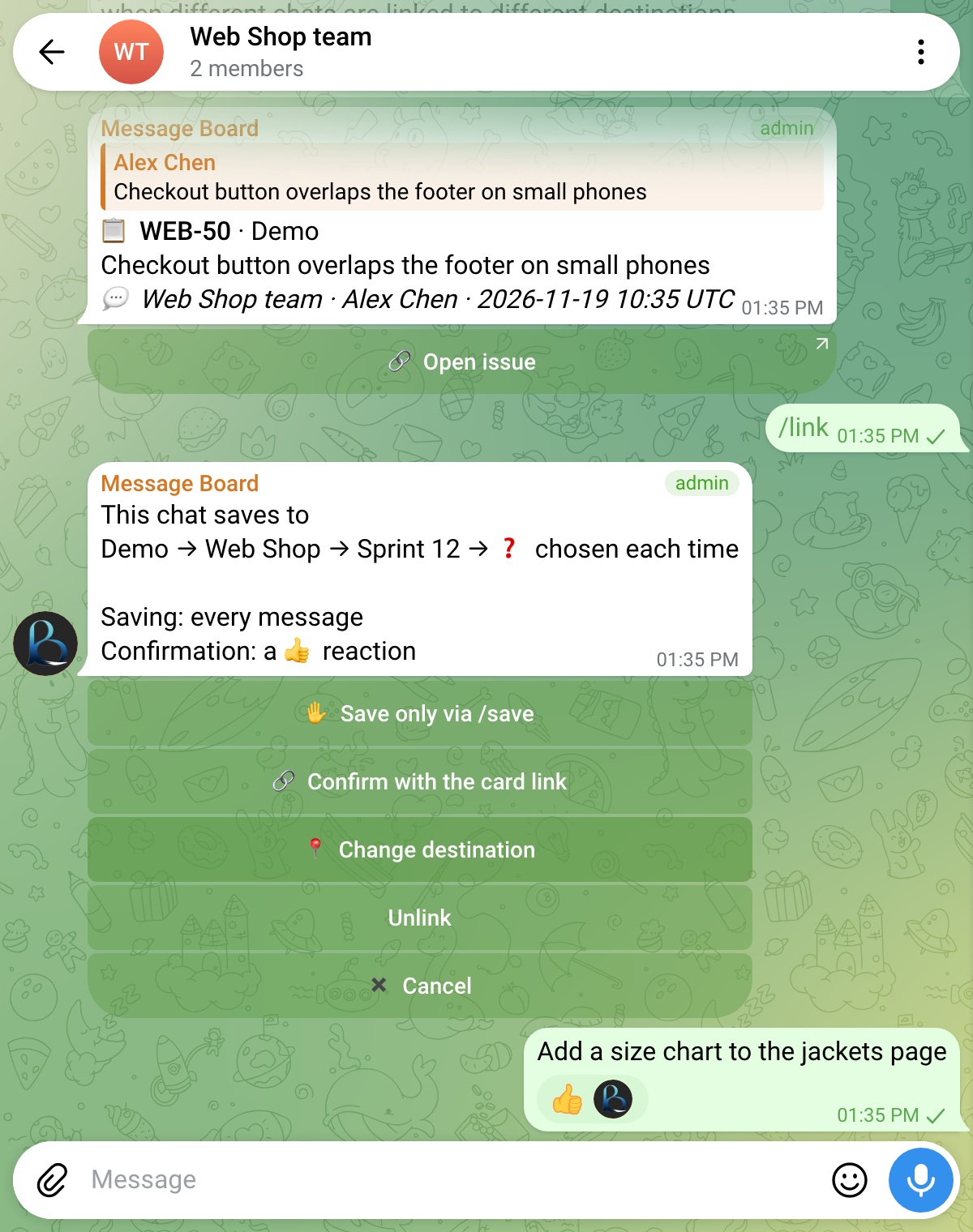
Either way, an update — an edit synced to the card, or /save on a message that's already saved — gets a ❤ reaction. The setting applies to both save modes: automatic saves and /save.
When the bot asked where to save, the question itself turns into the card in link mode; in reaction mode it disappears and the message gets 👍.
Defaults
- Your private chat with the bot — set up when you start using Boards: every message, the backlog of your personal organization's first space, and link replies.
- A chat you link with /link — you choose every setting while linking.
- Chats linked before these settings existed keep what they did: chats saving every message react with 👍, chats saving via
/savereply with the link.
Changing settings
Send /link in a linked chat. Instead of starting over, the bot shows the chat's settings:
This chat saves to
Organization → Space → Epic

Saving: every message
Confirmation: a reply with the card link
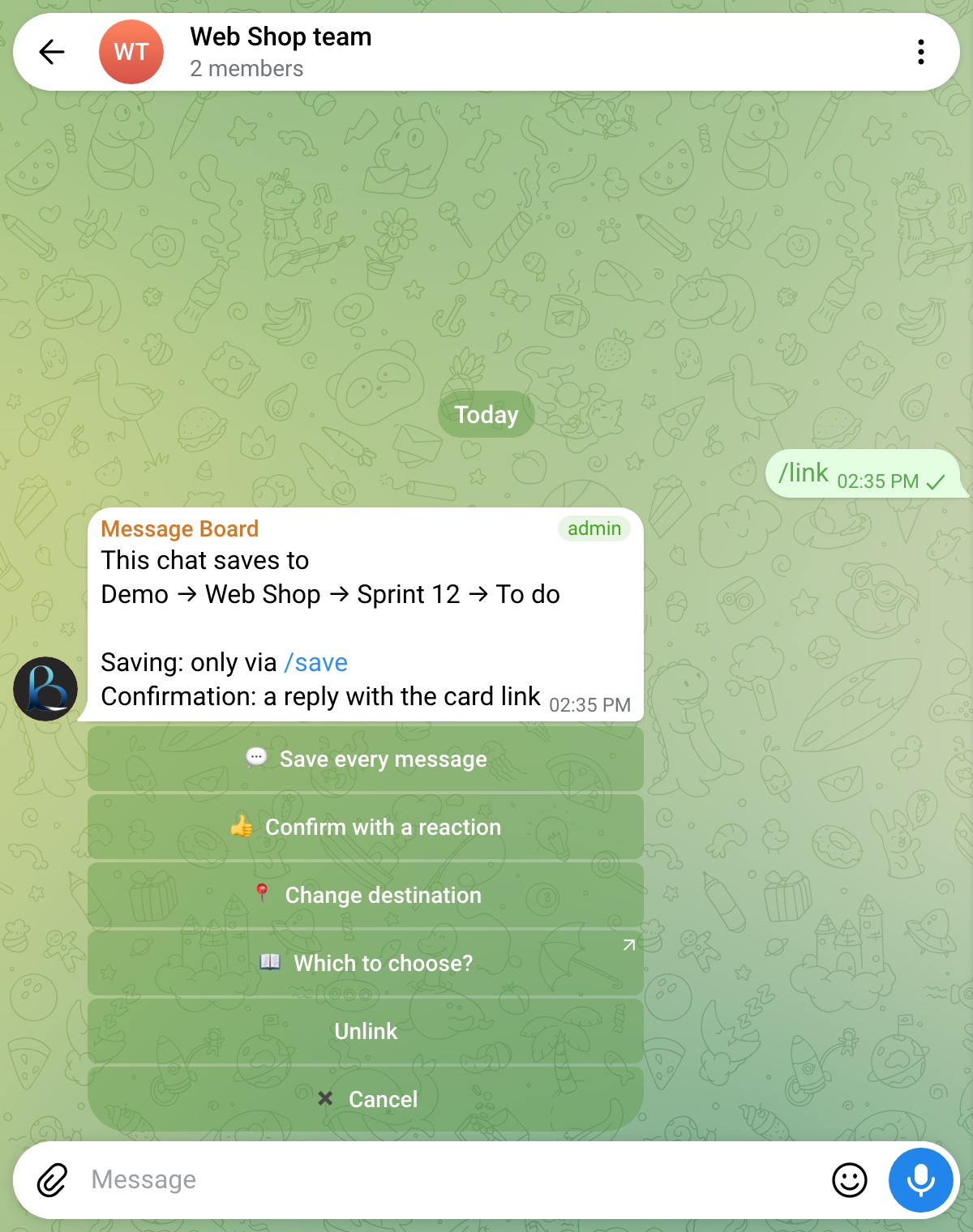
Each setting has a button that switches it, and the menu updates in place:
- ✋ Save only via /save or 💬 Save every message
- 👍 Confirm with a reaction or 🔗 Confirm with the card link
- 📍 Change destination — goes through organization, space, epic and status again (with the "ask each time" buttons), then asks how to save and confirm.
- Unlink and ✖ Cancel
In a group, only a chat admin with the Link Telegram chats permission can change settings — the same as for /link itself. In your private chat with the bot, you always can.
Use cases
One inbox chat, sort later
Send everything to one chat — your private chat with the bot works well — and decide where each message goes as it arrives.
- When: every message
- Where: ❓ ask for the space each time (or fix a space and ask for the epic)
- Confirm: 🔗 card link, so you see where each one landed
A chat per activity
A separate chat for each thing you collect — a "Reading list", "Ideas for the blog", "Groceries" — each linked to its own place.
- When: every message
- Where: a fixed status (or backlog)
- Confirm: either; 👍 if you add a lot
Team group
A busy group where only some messages become tasks, and whoever saves one decides which column it starts in.
- When: only via /save
- Where: fix the epic, ❓ ask for the status each time
- Confirm: 🔗 card link, so the whole chat sees the card
See Turn a Telegram group chat into a team task board for a start-to-finish guide.
Heavy daily use
If you save dozens of messages a day, link replies fill the chat. Keep any of the setups above and switch the confirmation to 👍 Confirm with a reaction — reply to a message with /info whenever you need its card's link.
Related pages
- Linking a Telegram chat to Boards
- Auto vs. manual save mode —
/save,/aisave,/infoand/delete - Permissions management