
Connecting Claude and other AI agents via MCP
Updated November 3, 2026
Laraue Boards runs a remote MCP (Model Context Protocol) server, so an AI agent like Claude can work with your issues directly — listing them, opening one, moving it between statuses, or leaving a comment — without you copying anything back and forth by hand.
What you need
An API key for the organization you want Claude to access. Create one from Organization profile → API keys before connecting.
Connecting in Claude
In Claude, type /mcp to open the MCP connectors list, then choose the custom connector option and add:
- URL:
https://boards.laraue.com/boards-mcp/mcp - Header:
X-Api-Keyset to your API key
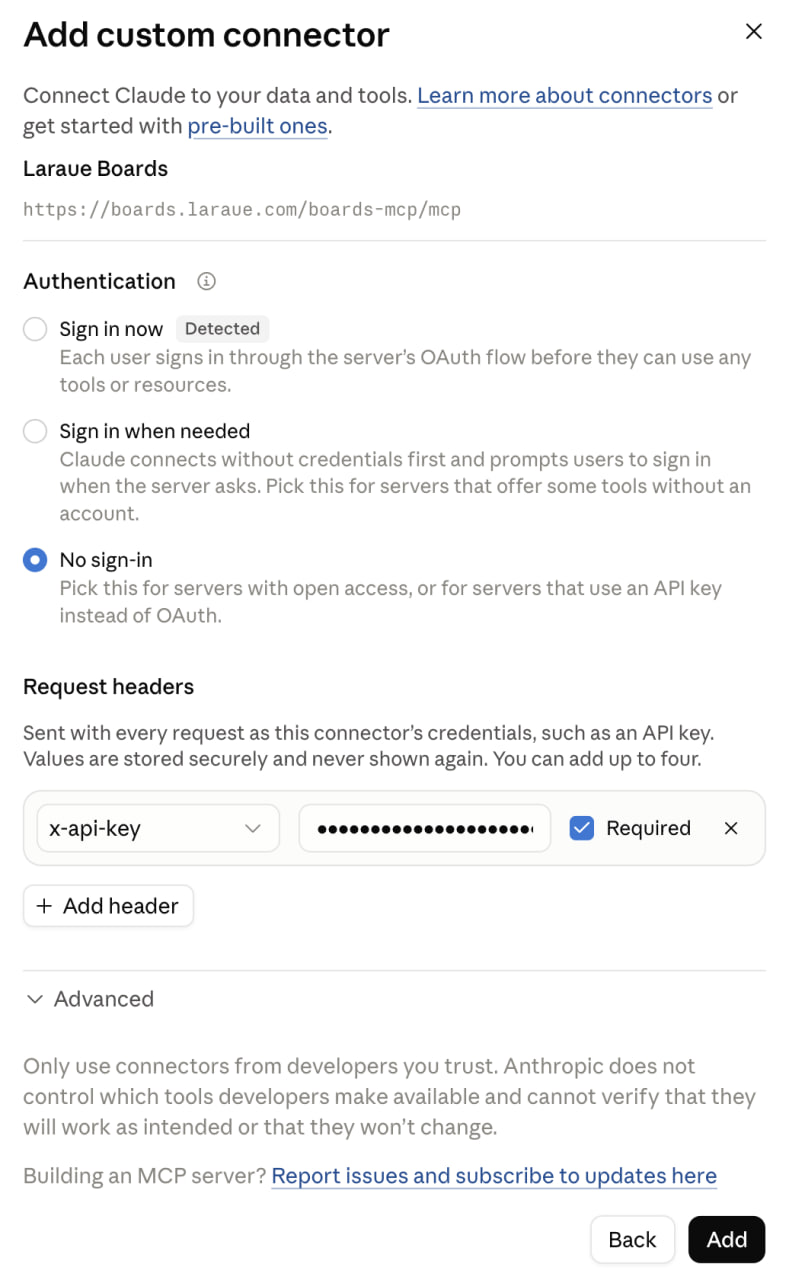
Laraue Boards is also listed on the official MCP Registry as com.laraue/boards, so any other MCP-compatible client that can browse the registry can find it the same way.
Connecting Claude Code
Run this once in a terminal:
claude mcp add --transport http boards https://boards.laraue.com/boards-mcp/mcp \
  --header "X-Api-Key: YOUR_API_KEY"
By default the server is added for the current project only. Add --scope user to make it available in every project. With --scope project the server goes into the project's .mcp.json, which includes the key — keep that file out of version control. Run /mcp inside Claude Code to check the connection.
Connecting Cursor
Add the server to .cursor/mcp.json in your project, or to ~/.cursor/mcp.json for every project:
{
  "mcpServers": {
    "boards": {
      "url": "https://boards.laraue.com/boards-mcp/mcp",
      "headers": {
        "X-Api-Key": "${env:BOARDS_API_KEY}"
      }
    }
  }
}
Set BOARDS_API_KEY in your shell environment, so the key never sits in the file.
Once connected, see A backlog for AI-assisted development for what to ask the agent.
What Claude can do
Every action runs with your own permissions, live — Claude can't do anything in an organization that you couldn't do yourself there, and it can't act at all once the API key behind it is revoked.
- Issues — list and filter issues, view one in full detail, create a new one (with a title), edit its title, content or assignee, move it to a different status (keeping or dropping the values of attributes the new board doesn't use), or delete it
- Comments — add a comment to an issue, or edit one you wrote, with files attached (e.g. a report or config)
- Organization structure — look up spaces (with a space's description and links), statuses, custom attributes (all of them, or only those a board uses), and members, so Claude can resolve names to the right ids on its own
- Attachments — attach images and documents to issues and comments, and read them back: an image as an image, Markdown, TXT and JSON as text, PDF and Word as a file — see Attachments for formats and limits
- Issue links — link issues (blocks, relates to, duplicates), remove a link, and leave blocked issues out when looking for work to start — see Issue links
- Agent runs — hand an issue to your coding agent, and, for a runner, pick up and finish the issues handed off to you — see Hand issues to an AI agent
Claude only offers actions you're actually allowed to take — for example, it won't suggest deleting an issue in a space where you don't have delete permission.
Revoking access
Access is tied entirely to the API key. Revoke it from Organization profile → API keys at any time, and Claude immediately loses the ability to reach that organization — the same as revoking any other key.
Related pages
- A backlog for AI-assisted development — connecting Claude Code or Cursor, and what to ask the agent
- API keys — connecting your own tools to Boards
- Permissions management