Logging in with Telegram
Updated October 28, 2026
Laraue Boards uses your existing Telegram account as your identity. There is no separate registration, no password to remember, and no email to verify.
Two ways to open Laraue Boards
As a Telegram Mini App
Search for @msgboard_bot in Telegram and tap Start. The Mini App opens inside Telegram — you are instantly logged in using your Telegram identity. No widget, no redirect, no extra steps.

This is the recommended way to use Laraue Boards on mobile.
In the browser
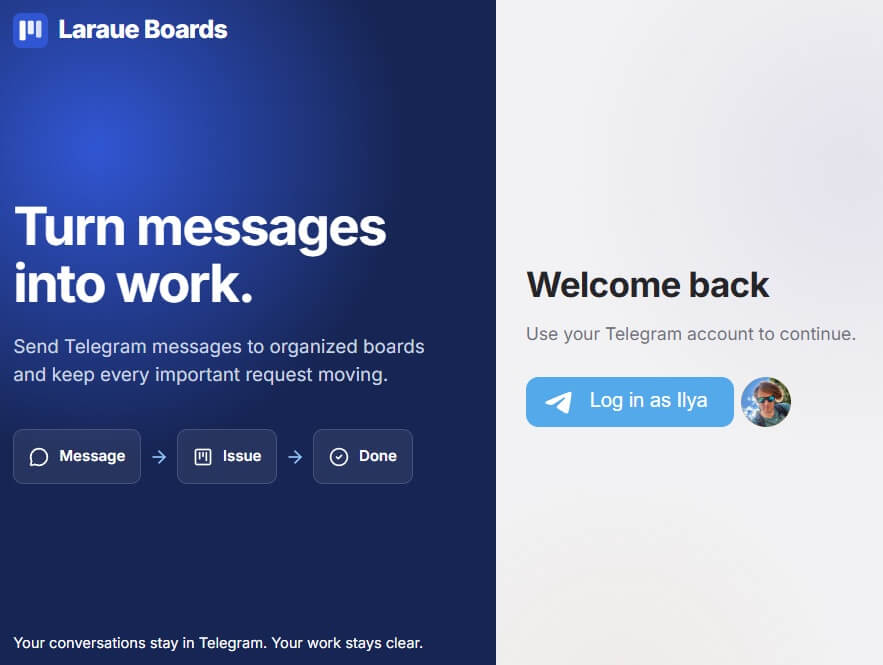
Open boards.laraue.com/login in any browser. You will see the login screen with a Continue with Telegram button. Clicking it opens a Telegram authorization popup — approve it and you are redirected back to the app.
The browser version requires that your Telegram account is accessible on the same device, or via the Telegram web client.
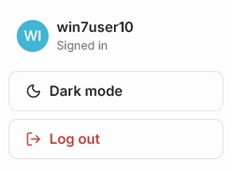
The same screen has a Google sign-in button. Signing in with Google for the first time creates a new account. To sign in with Google to the account you already use through Telegram, connect Google in your Personal profile (the user menu at the bottom of the sidebar), under Sign-in methods — and the other way round: Telegram can be connected to an account created with Google. The bot recognizes you only when Telegram is connected to your account.
What data is used
When you log in, Laraue Boards receives your Telegram user ID, first name, last name (if set), username (if set), and profile photo URL. No messages are read — only your identity is used for authentication.
The login is verified server-side using a cryptographic hash signed with the bot token, so the data cannot be forged.
Switching accounts
Laraue Boards does not support multiple simultaneous Telegram accounts. To switch accounts, log out and log in again with a different Telegram account.
After login: choosing an organization
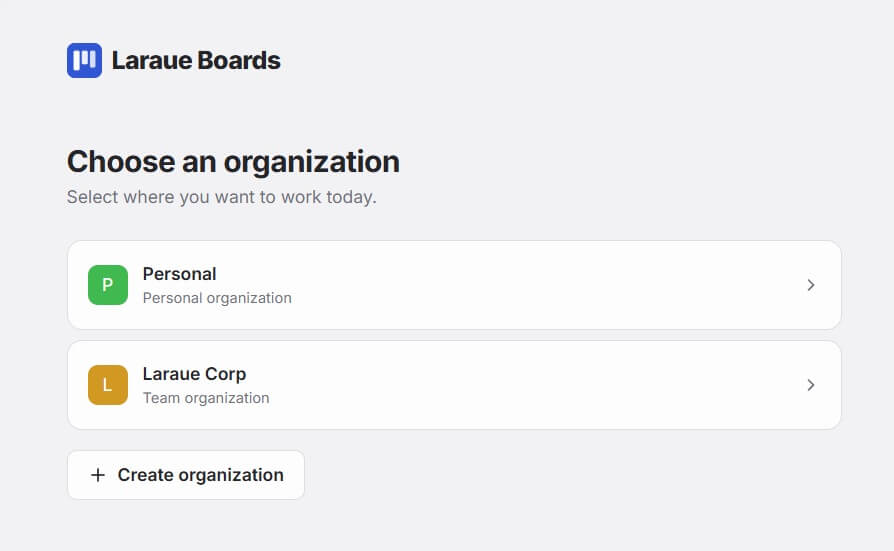
The first time you log in, you land on a screen listing every organization you belong to, including Personal — your own private organization, set up for you automatically. Tap one to open it, or tap + Create organization to start a new one.
You can switch organizations at any time from the dropdown at the top of the sidebar, without logging out. It shows the same list you saw right after logging in.