
Custom attributes — filter and label your issues
Updated November 3, 2026
Attributes are custom fields you can attach to issues — priority, type, or anything else your workflow needs. They're defined at the organization level, so they mean the same in every space; each space and board can choose which of them it uses and which it shows on cards.
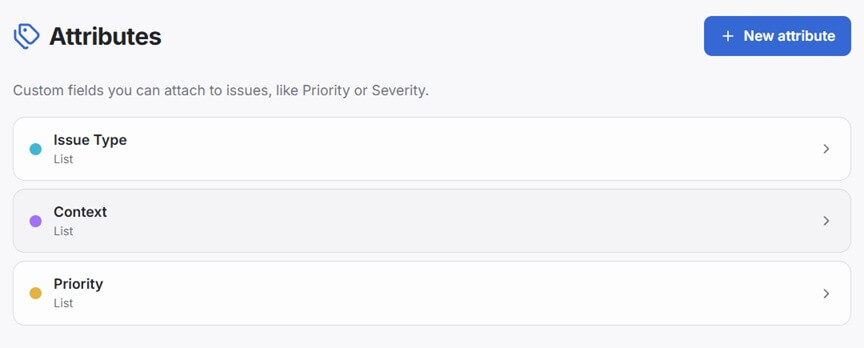
Attribute types
| Type | Use for |
|---|---|
| Text | Free-form text — notes, links, reference numbers |
| List | A fixed set of options — priority levels, issue type, anything from a dropdown |
| Integer | A whole number — story points, a count |
| Decimal | A number with decimal places — a price, an estimate in hours |
| Date | A calendar date — a due date, a deadline |
| Date and time | A calendar date with a time — a scheduled moment, not just a day |
Managing attributes
Open Admin → Attributes in the sidebar. Tap + New attribute, give it a name, pick a color, and choose the type.
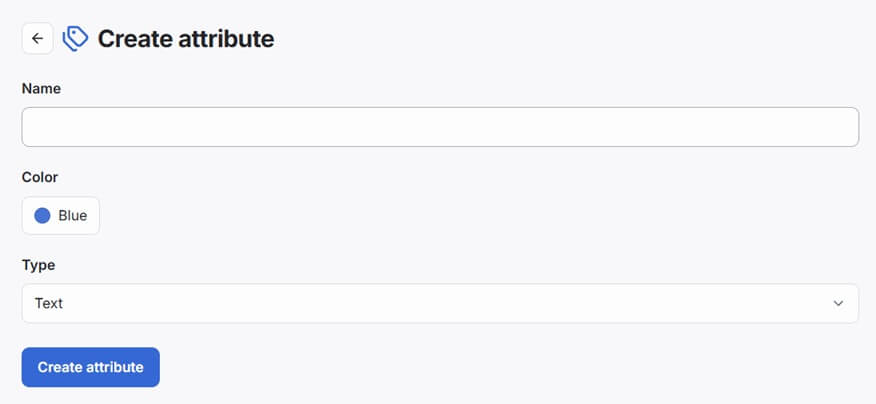
For a List attribute, add its options — tap + Add option for each one, and remove any with the trash icon next to it.
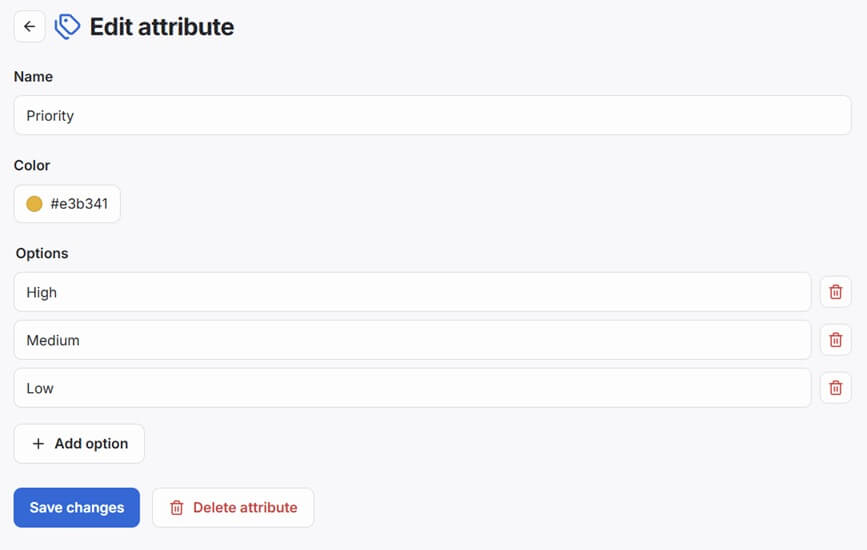
Order and defaults
On Admin → Attributes, tap Change order and drag the attributes into the order you want, then tap Save order. Forms, cards and filters show attributes in this order in every space and board.
An attribute's edit page has two defaults, used wherever a space or board hasn't chosen its own:
- Available — issues can have the attribute: it's in the issue form. Switch it off for an attribute only some spaces need; it stays in the organization and keeps its values, and a space or board can still turn it on. The list marks such an attribute Off.
- Shown on cards — the attribute's value appears on issue cards.
Attributes in a space or board
A space's settings and a board's settings each have an Attributes section. At first it follows the level above — the organization's defaults for a space, the space's settings for a board — and shows them read-only.
Tap Override to give the space or board its own settings, then tick Available and Shown on cards for each attribute. Changes above it no longer reach it, and the section is marked Overridden. Reset to inherited goes back to following the level above. Both only change the form: tap Save at the top of the page to apply them together with the rest of the settings.
- A space's backlog always follows the space's settings.
- An attribute added to the organization after a space or board got its own settings is off there until someone turns it on.
Changing a space's or board's attribute settings takes the permission to update that space or board.
On cards and in lists
Values of the attributes a board shows on cards appear as small labels under the title on board cards and in issue lists. Lists show all these values on a separate line below the title, on desktop and mobile. Hover over a label to see the attribute's name.
On the issue page
The issue page lists the attributes its board uses. If the issue still has a value for an attribute the board doesn't use — for example, after a move — that value is folded under Not available on this board at the end of the properties. Open it to see the value or clear it; such an attribute can't get a new value on that board.
Moving issues
When you move issues to a board that doesn't use some of their attributes, their values stay on the issues, listed apart as above. Moving boards between spaces keeps them the same way — see Mass move.
Who can manage attributes
Managing attributes — creating, editing, or deleting them — requires the Manage attributes administrative permission. This isn't granted to anyone by default; a member needs it explicitly, the same as any other permission. Members without it can still see and use attributes on issues.
Filtering by attribute
When a board uses List attributes, filter chips appear in the filter bar — for every List attribute of the organization, so values kept where the board doesn't use an attribute are still found. Tap a chip to filter to only issues with that value. Multiple filters combine — only issues matching all selected values are shown.
Attributes vs statuses
Statuses (columns) represent where in the workflow an issue is. Attributes represent additional facts about the issue that don't change its position in the workflow. An issue can be "In Progress" (status) and "High priority" (attribute) at the same time.
Deleting an attribute
On its edit page, tap Delete attribute. Since attributes are defined at the organization level, this removes it — and its values — from every issue across the organization, not just one board, along with the space and board settings for it. This cannot be undone.